
Help · I have a store
Help for stores: custom orders, online store and register
Custom orders, online store and register in one place. Choose what you do in the store.
Owner and manager
20
Create your store
Name, contact, transfer details, and your team.
Watch video (1 min)
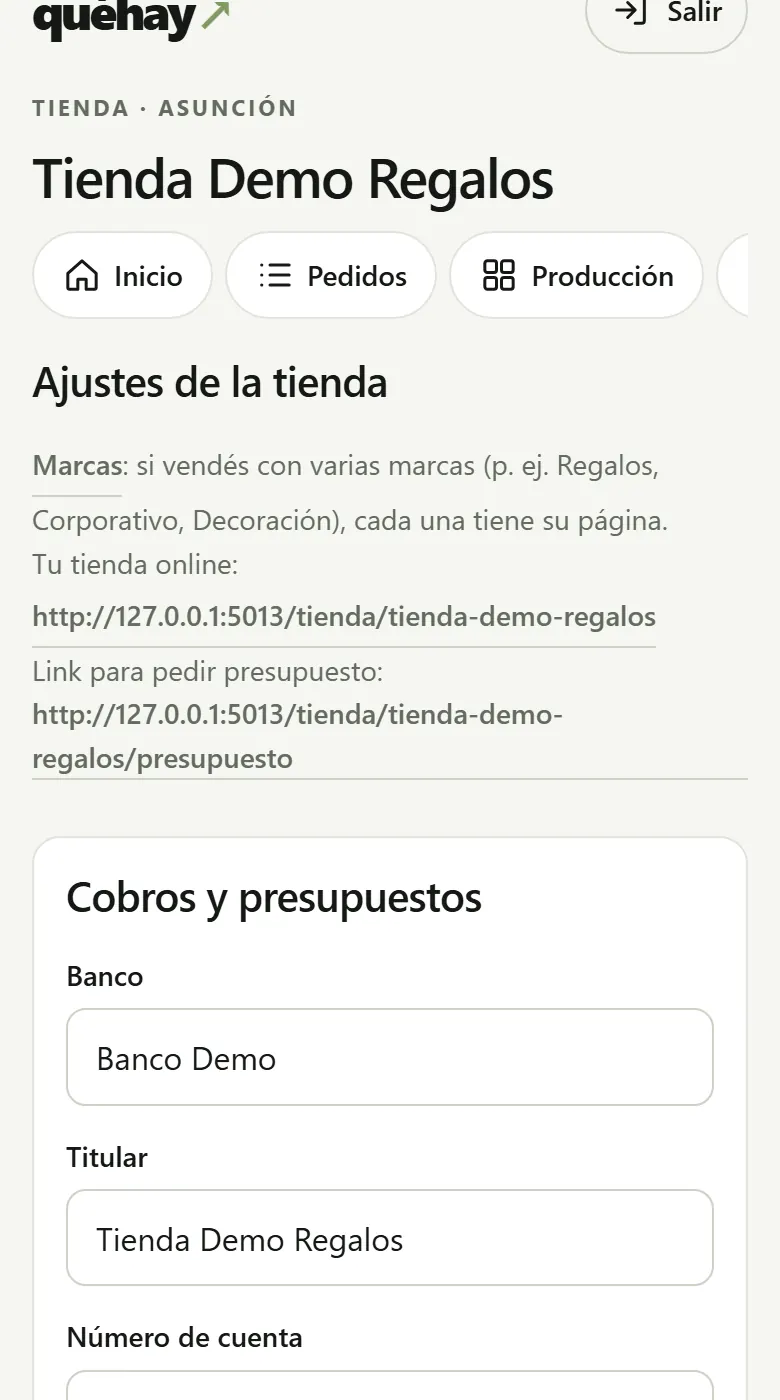
- Log in to QuéHay with your account. On your dashboard tap “Create my venue” and under “Type” choose “Store”.
- Fill in the name, city, address and WhatsApp. Tap “Create my venue”.
- Under “Store” enter the details for transfers, the default deposit and how long quotes remain valid.
- Under “Staff” invite your team: “Cashier” for sales and register, “Kitchen / Bar” for production.
Tip: Production can’t see prices, quotes, or payments: only the board, the designs, and the tasks.
Add ready-made products, customizable products and combos
Ready-made with stock, customizable to order, and combos.
Watch video (1 min)
View on YouTube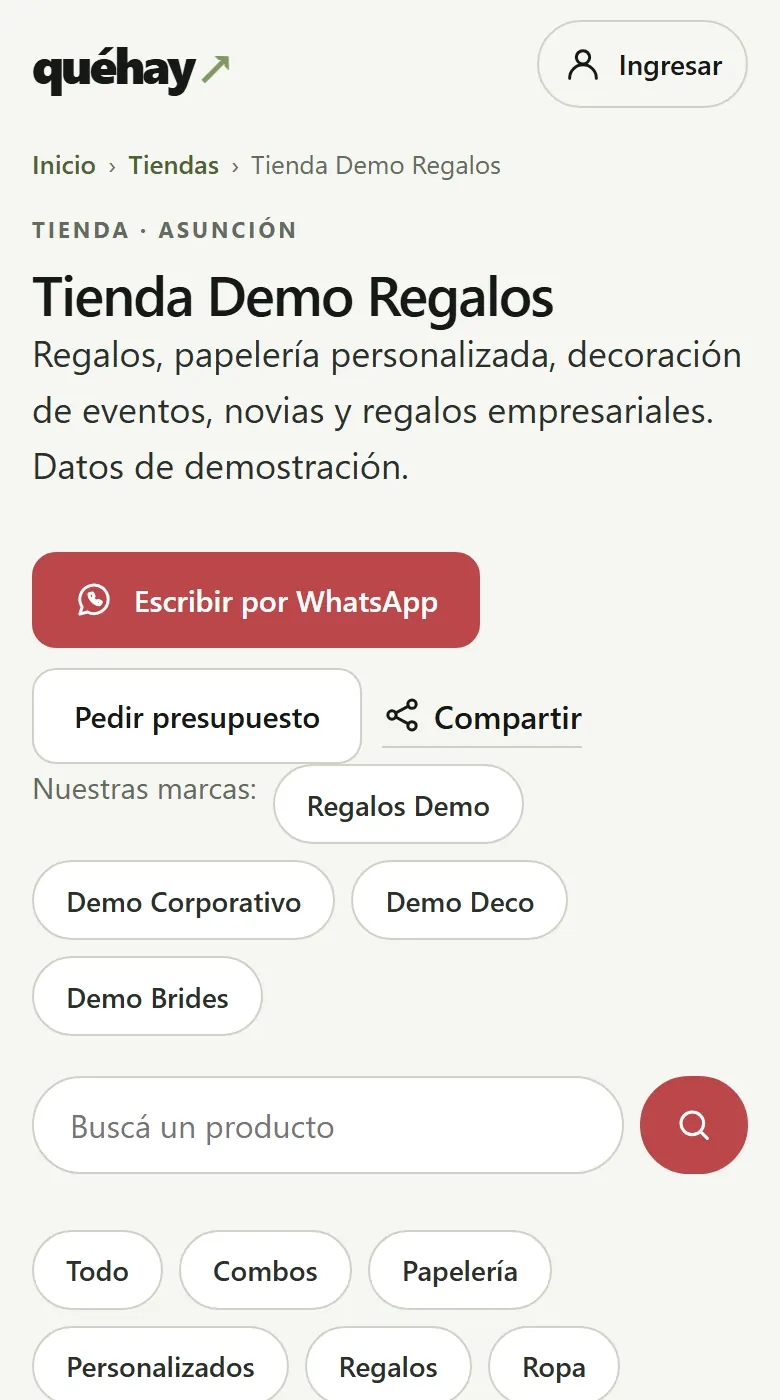
- Under “Products” add each product with its price and category.
- Under “Store” › “Products” choose whether it’s sold ready-made (with stock), customizable (made to order) or as a combo.
- For customizable products, add the questions for the customer (theme, colors, name…) and the photos you ask them for.
- Under “Photos and variants” upload up to 8 photos and add the variants (color, size, model) with their price and stock.
Send a quote with a deposit
Items, deposit and validity. The customer accepts it from their link.
Watch video (1 min)
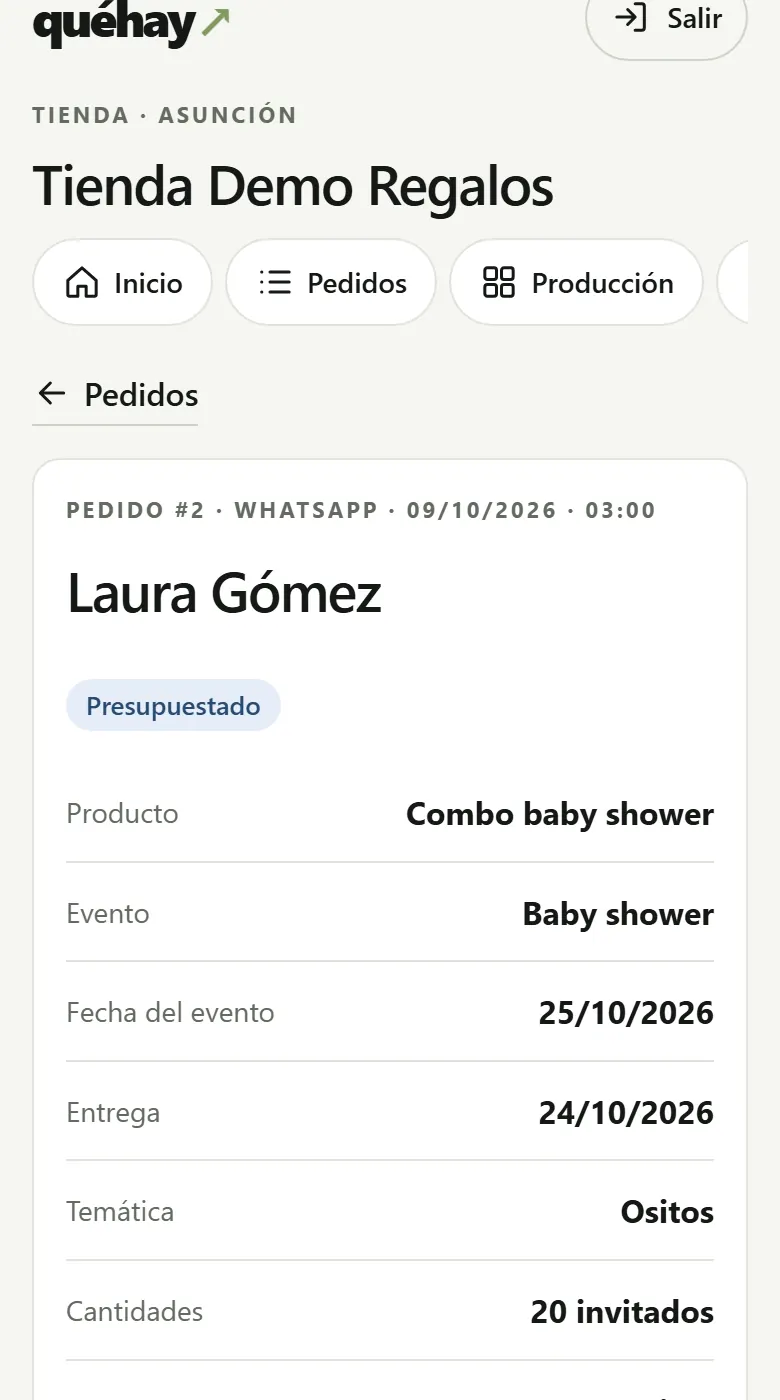
- Inquiries arrive in “Orders” as “New”. You can also add one with “Add order”.
- Open the order and, under “Quote”, enter the items, the delivery or installation, the deposit and the validity period.
- Tap “Save and send”. The customer gets it by email and sees it on their link; send them the link on WhatsApp with “Ready messages”.
- If they ask for changes, save a new version: the version history is kept.
Did something go wrong?
The customer doesn’t see the quote
Make sure you sent it (“Save and send”). Send them their link again from “Ready messages”.
Approve the deposit and collect the balance
Just like with tickets: you verify the transfer and approve.
Watch video (1 min)
- When the customer uploads the receipt, in “Orders” you see “You have 1 receipt(s) to review” and on the order the payment shows as “To review”.
- Tap “View receipt” and check your bank account. If it arrived, check “I verified the transfer” and approve it.
- If it didn’t arrive, tap “Reject” and write the reason: the customer sees it and can upload another.
- You collect the remaining balance in the store with “Record payment” (it goes into the shift’s register) or with another receipt.
Your online store and “Order via WhatsApp”
Catalog, cart, delivery by zone and WhatsApp.
Watch video (1 min)
- Under “Store” › “Online store” choose your color, the delivery zones with their cost and minimum, and how people can pay you.
- Share your link (at the top of “Store”). Your customers see the catalog, choose variants and build their cart.
- They can pay by bank transfer (products are held for a few hours), at pickup or on delivery.
- With “Order via WhatsApp” your chat opens with the whole order already written out, and the order is still saved in “Orders”.
Tip: The stock is the same as the register’s: the last unit is never sold twice.
Create a promotion
It applies automatically on the website and at the register, only on its dates.
Watch video (1 min)
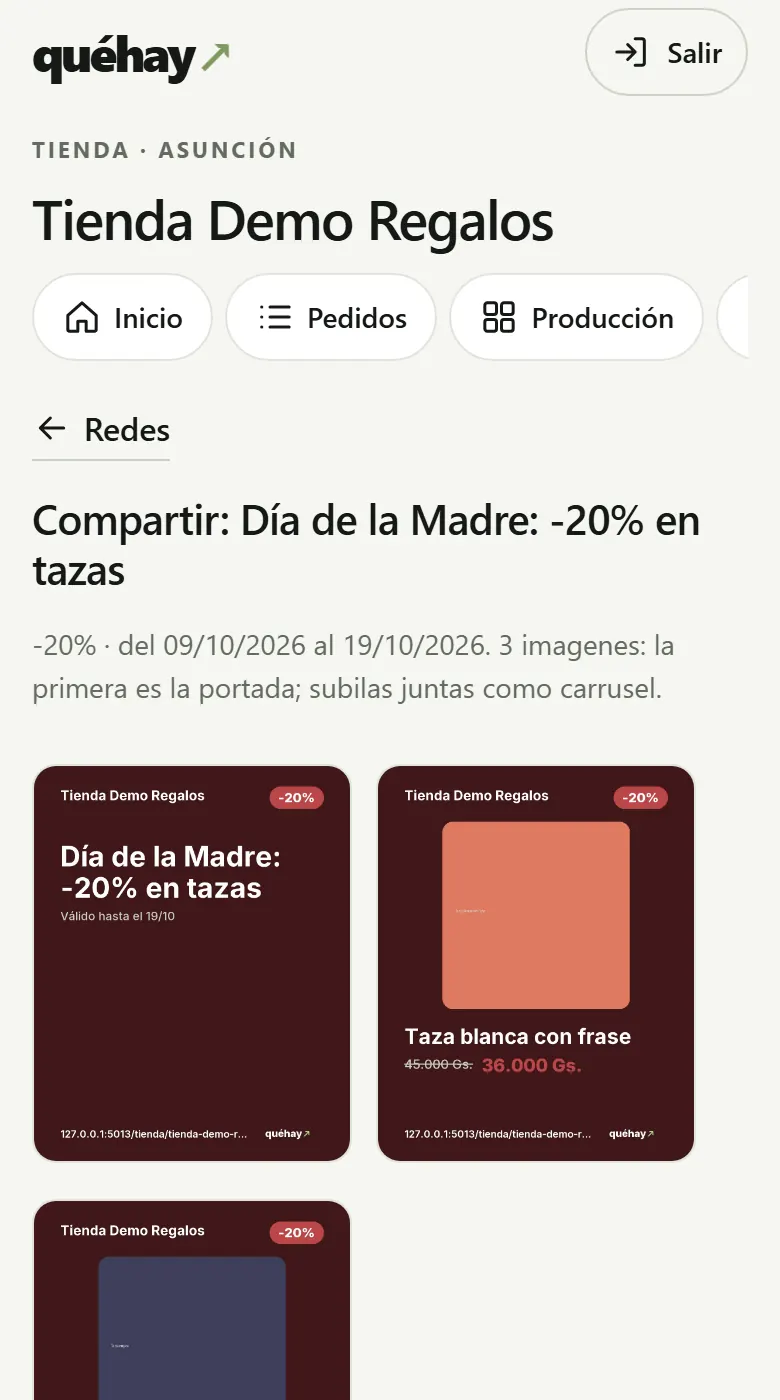
- Under “Social” tap “Create or edit promotions”.
- Choose the type (“-%”, “2x1” or “Combo”), the special date if you like (Mother’s Day, Christmas…), the products and how long it’s valid.
- If you set a coupon on it, it only applies when the customer enters it in the cart or you enter it at the register.
- When you save, we prepare the cover and one image per product, with the text ready to copy.
Share a product on Instagram and WhatsApp
4:5 and 9:16 images with photo, price and your link.
Watch video (1 min)
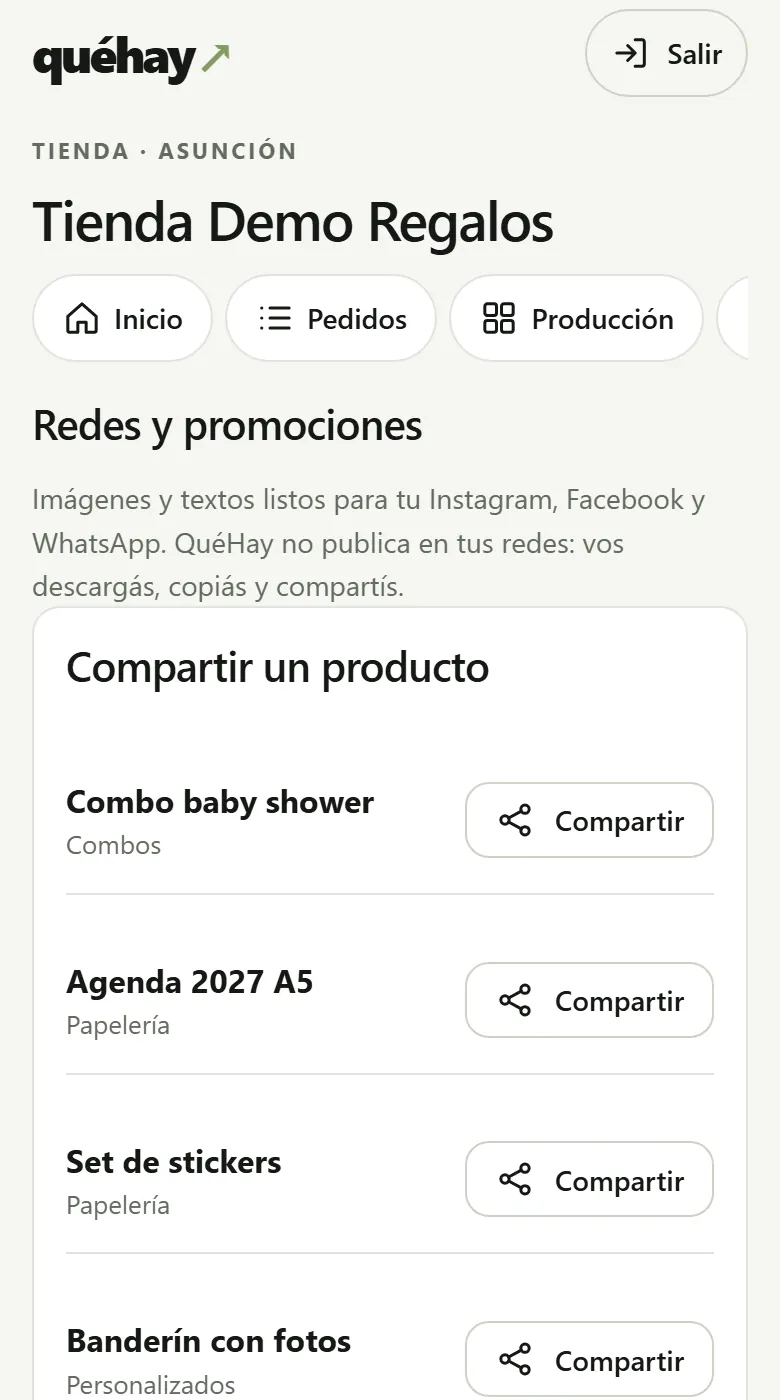
- Under “Social” tap “Share” next to the product.
- Download the image for a post or a story. Copy the text (you can edit it first).
- On your phone, “Share” lets you send it straight to Instagram or WhatsApp.
- The link carries the source: in “Reports” you see how many orders came from each network.
Tip: QuéHay doesn’t post to your social accounts or have access to them.
Tag products on Instagram (Meta catalog)
You set it up once and it updates itself with your products that have photos.
Watch video (1 min)
- Under “Social” › “Catalog for Instagram and Facebook” copy your store’s CSV link.
- In Meta Commerce Manager go to your catalog › “Data sources” › “Add items” › “Data feed”.
- Choose “Use URL”, paste the link and schedule it to update every day.
- Once Meta approves the catalog, you’ll be able to tag your products in posts and stories.
Did something go wrong?
Meta rejects products
Each product needs at least one photo and to be visible on the web. Sold-out items show as “out of stock”.
Customers, companies and credit accounts
Tokens, history, positive balance and credit only if you enable it.
Watch video (1 min)
- Under “Customers” create the record (a person or a company with RUC), or from an order with “Create record with this data”.
- If you give a company credit, on its record tick “Enable credit payment” and set the limit and the term.
- On the order tap “Confirm on credit (no deposit)”: it falls due after the payment term, counted from delivery.
- Under “Customers” › “With overdue balance” you see who is behind. Customers with overdue balances get no more credit.
Rent decoration pieces
Availability by day, security deposit and return by condition.
Watch video (1 min)
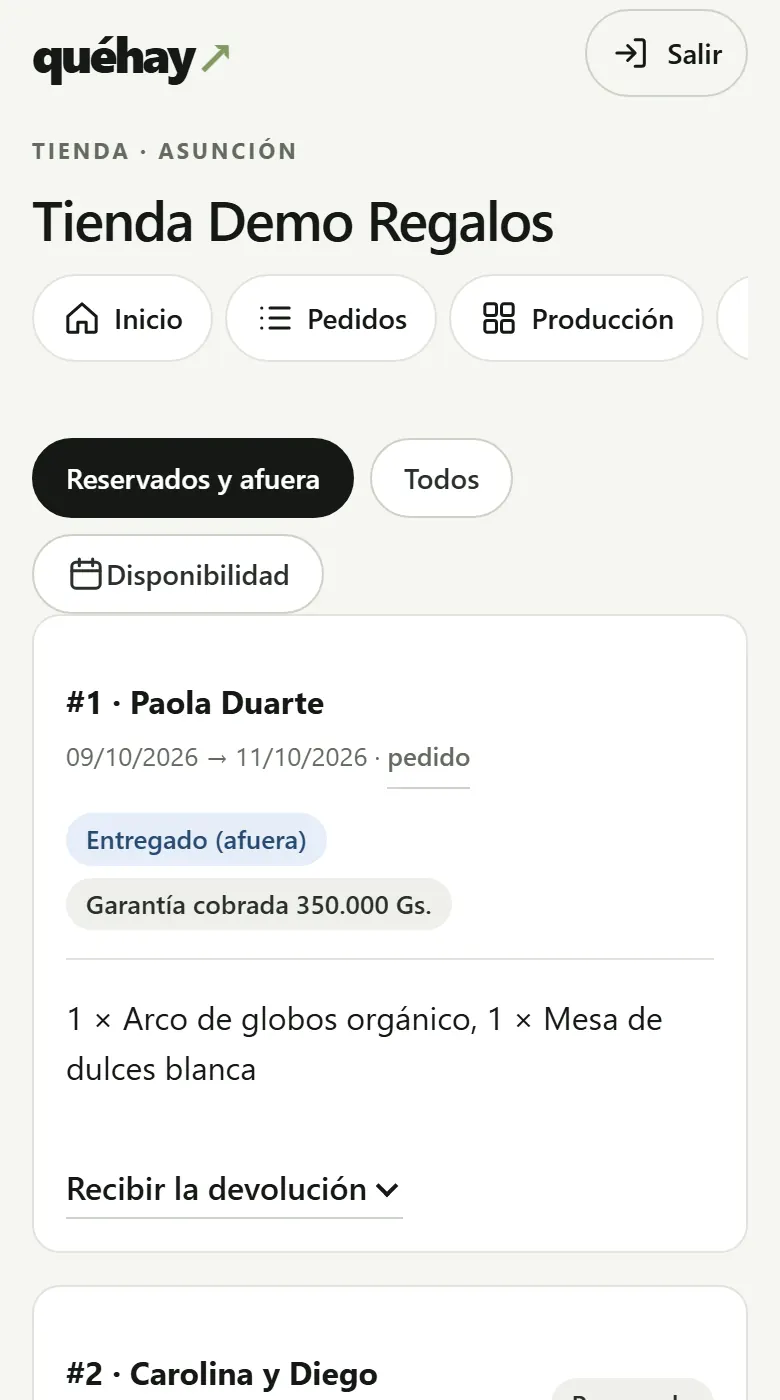
- Under “Rentals” add each item with the quantity you have, the price and the security deposit.
- Under “New rental” choose dates and items: it won’t let you rent the same item twice for overlapping days.
- Collect the security deposit and tap “Hand over items” when they go out.
- When they come back, “Receive the return”: mark the damaged or missing ones; the charge is deducted from the security deposit and the rest is returned.
Sell with several brands
One account, several pages: Gifts, Corporate, Decoration, Brides…
Watch video (1 min)
- Under “Store” tap “Brands” and create each one with its name, address, color, logo, WhatsApp and Instagram.
- Assign which products go in each brand.
- Each brand has its public page. Stock, register, customers and reports belong to the store, with a filter by brand.
Record invoices for your accountant
Type, timbrado (tax stamp), number and RUC; Excel for your accountant.
Watch video (1 min)
- QuéHay doesn’t issue invoices: you record the one you issued yourself.
- When you charge at the register, open “Record invoice (manual)” and fill in type, timbrado, number, RUC or CI and legal name.
- In an order, use the “Invoice” section.
- Under “Invoices” you see the ones for the period and the payments without an invoice, and you download them as Excel for your accountant.
How to design my website
Template, colors, pages, and sections; preview and publish.
Watch video (1 min)
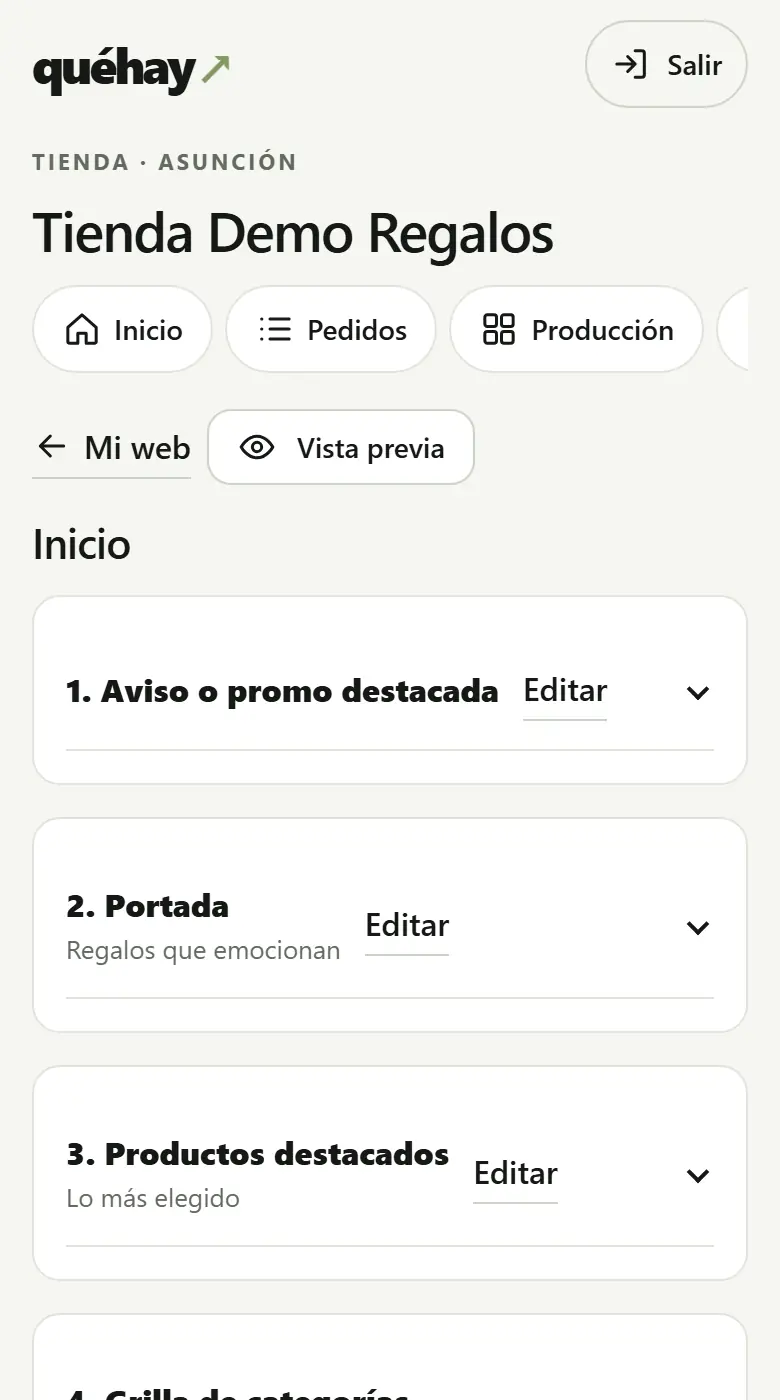
- Under “My website” choose a template (Delicate, Modern, Minimal or Colorful) and tap “Save identity”.
- Change the colors, fonts, borders and upload your logo. We choose the text color automatically so it’s always readable.
- Under “Pages, menu and footer” choose which pages go in the menu and in what order. Tap “Edit” on a page to build it.
- Add sections (cover, featured, quote, gallery, reviews…), reorder them with “Move up” and “Move down” or hide them.
- Check the “Preview” on phone and PC, and tap “Publish”. If something doesn’t look right, tap “Go back to this” on the version you want.
Tip: Your products, prices, stock and orders update themselves on your website: you manage them from this panel.
How to connect my domain
You add two DNS records, verify and activate.
Watch video (1 min)
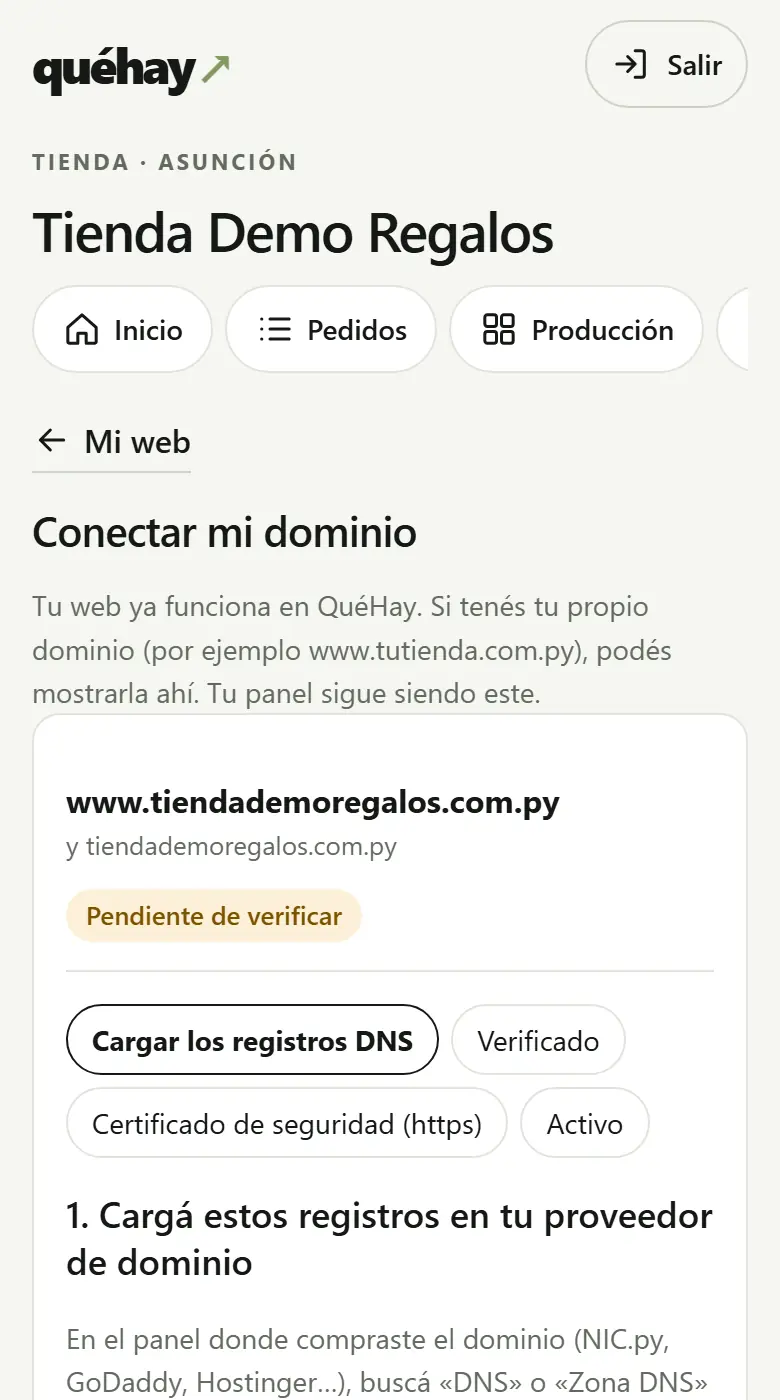
- Under “My website” tap “Connect my domain” and type your domain, for example www.tutienda.com.py.
- In your domain provider’s panel (NIC.py or another) go to “DNS” and add the records we show you: the verification TXT and the CNAME.
- Come back to QuéHay and tap “Verify”. If anything’s missing, we’ll tell you what.
- When the security certificate (https) is ready, tap “Activate my domain”. Your website already shows up there.
Did something go wrong?
“We don’t see the TXT record yet”
DNS changes can take up to a few hours. Check that the name is exactly the one we showed you and try again.
Do I lose my QuéHay page?
No: the QuéHay address leads to your domain. Your dashboard stays on QuéHay.
Choose your business type
Your store ready for what you sell, with nothing to set up.
Watch video (1 min)
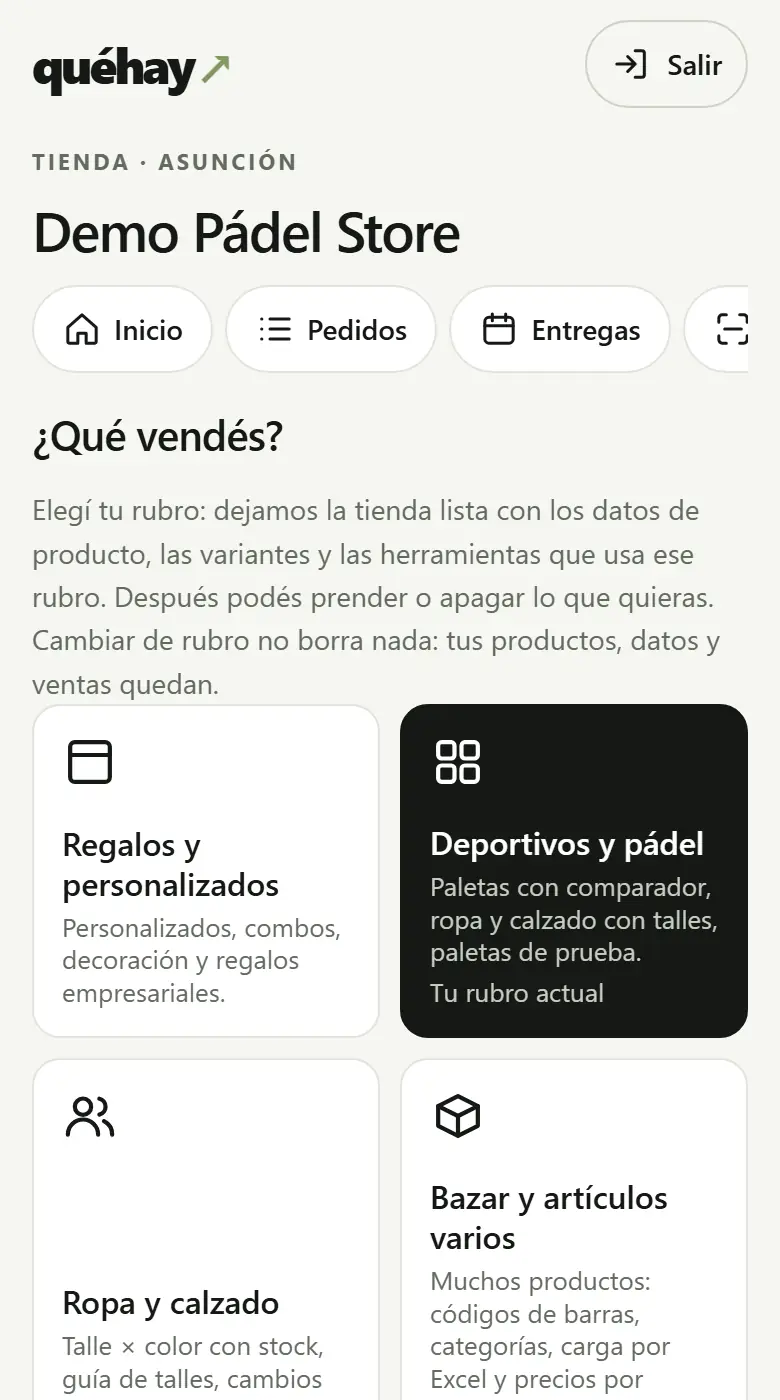
- In your store dashboard tap “Choose your business type” (or “Store” › “Tools and data for your products” › “Change business type”).
- Tap your industry: you’ll see which tools, product fields and website sections get turned on.
- Tap “Use…”. After that you can turn tools on or off in “My store settings”. Changing business type doesn’t delete anything.
Delivery by distance: the customer marks their address on the map
Base + Gs. per km, calculated automatically from the customer’s map pin.
Watch video (1 min)
- First mark your store’s location: in “Profile”, search its address and adjust the pin on the map.
- Under “Store settings” › “Online store” choose “By distance” and enter the base fee, the Gs. per km, how many km you deliver up to and the minimum order.
- In the cart the customer chooses “Delivery to my address”, searches for their address or taps “Use my location” and drops the pin at their door.
- See the cost instantly. The order reaches you with the address, the km and “Get directions”.
Tip: It’s measured in a straight line from your store or the nearest branch, and every started km is charged.
Your branches on the map
Its pin on the map, “How to get there” and delivery from the nearest branch.
Watch video (1 min)
- Open “Branches” and tap one to edit it.
- Tap “Find it on the map” and choose the address, or paste the branch’s Google Maps link.
- “Our branches” shows up in your store with “Get directions” for each one, and distance-based delivery starts from the nearest one.
Own stock at each branch and “Where is it in stock?”
Each branch with its stock, its hours and “Pick up here”.
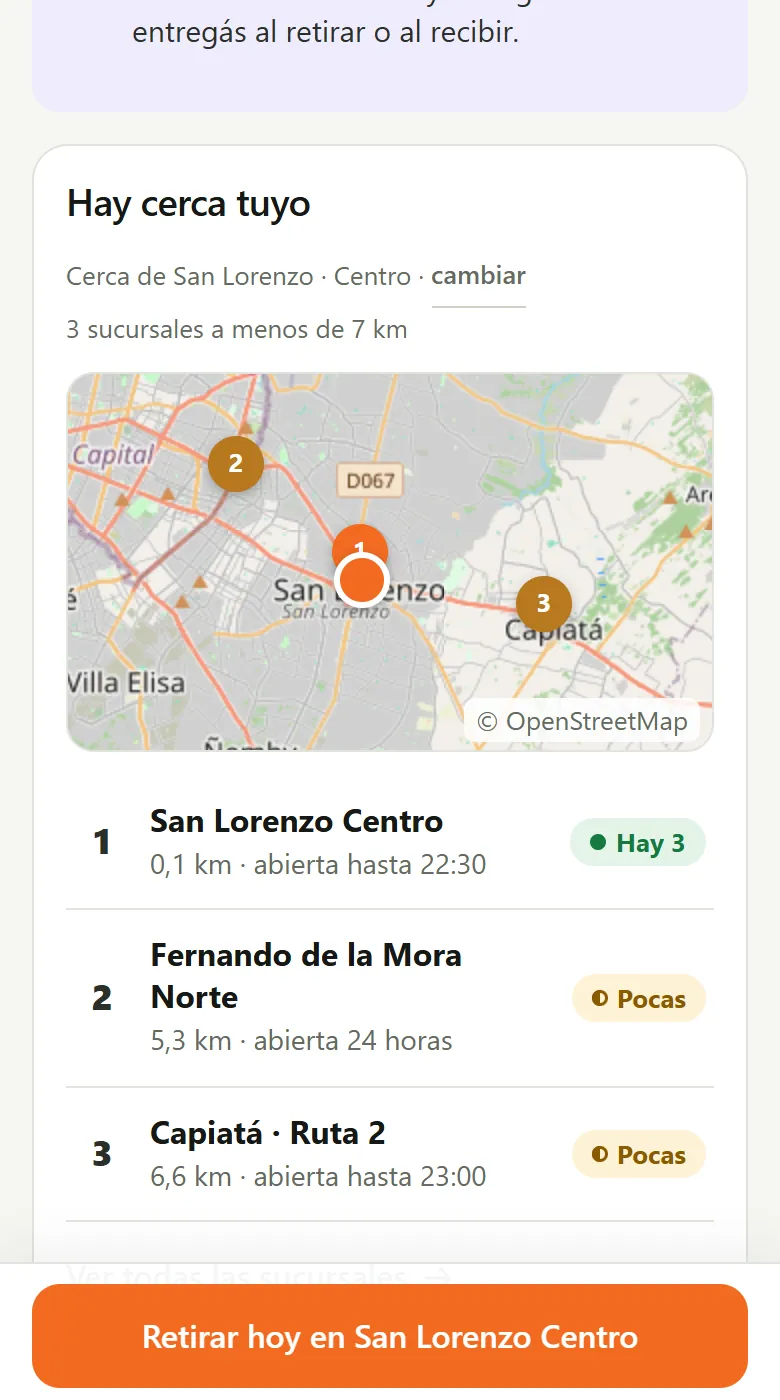
- Open “Branches” and, for each one, enter its city, neighborhood, phone, hours (or “Open 24 hours”) and whether it does delivery.
- On each product’s page, in “Stock by branch”, enter what each one has: the total is the sum. Also by Excel.
- On your website each product shows “In stock near you” and “Where is it in stock?”: customers choose their neighborhood, city or an address, without sharing their location.
- They see “In stock”, “Few left” or “Out of stock”, whether it’s open now, and tap “Pick up here”: the order comes from that branch. Delivery leaves from the nearest one that has everything.
Tip: In “How stock shows on your website” you choose up to how many units it says “Few left” and whether it shows the number.
Prescriptions: the photo at checkout and the pharmacist’s queue
Approve, ask for another photo or reject, and it’s all on record.
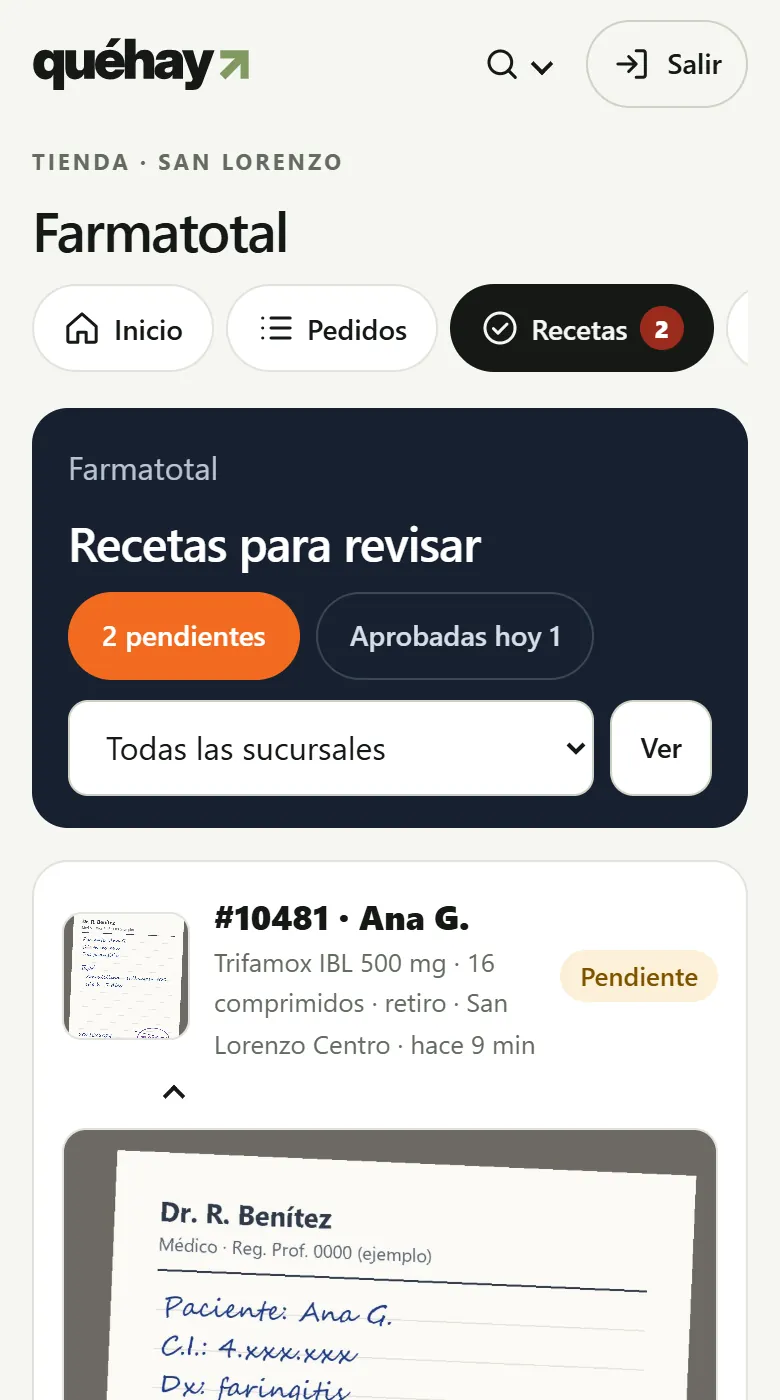
- On each product choose its “Sale condition”: over the counter, prescription only, prescription kept by the pharmacy or special prescription (controlled).
- Whoever buys a prescription medicine uploads the photo when confirming, without creating an account. Controlled medicines are reserve-only: they’re paid for and handed over at the counter.
- In “Prescriptions” open the first one: look at the photo, check what you reviewed and tap “Approve”, “Ask for another photo” or “Reject” with the reason.
- Tap “Notify via WhatsApp”: the message is already written, with the link to their order. Until you approve it, the order doesn’t move to “Ready”.
Tip: Every decision is recorded with who, when and which photo. A prescription kept by the pharmacy is handed over at pickup or delivery.
Demand in your area
What the bars and events near you are going to need.
Watch video (1 min)
- In your store dashboard, under “Demand in your area”, tap “See weekend demand”.
- See how many events and venues there are from Friday to Sunday and how many people we expect.
- Check what people will be drinking and get your stock ready.
Tip: It’s an aggregated, anonymous estimate from at least 5 venues.
Sales and register
4
Sell at the quick register
Scan, charge and make change in seconds.
Watch video (1 min)
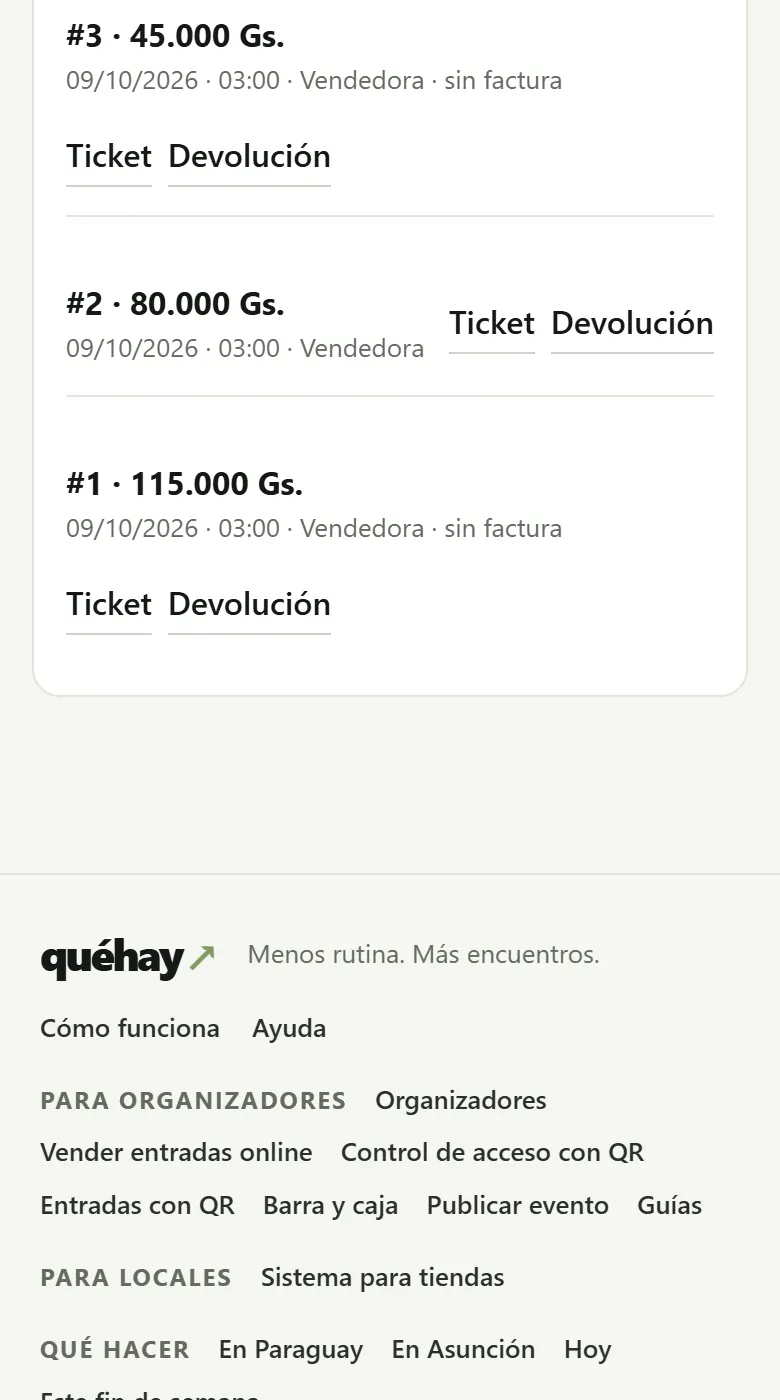
- Open the register under “Register” with the starting cash.
- Under “Quick register” scan the code with the reader or the camera, or search by name.
- Choose the payment method (or “Split payment”), enter the amount received and tap “Charge”: it shows you the change.
- Print the internal receipt (58 or 80 mm) if the customer asks for it.
Tip: Active promotions are applied automatically. If someone asks you for a discount, your maximum is set by the owner.
Exchanges and returns
The stock goes back and the register balances out.
Watch video (1 min)
- Under “Quick register” › “Latest sales” tap “Return” on the sale.
- Choose what’s coming back and enter the reason.
- Choose “Store credit” (you give them a code) or “Refund the cash” (it comes out of the register).
- For an exchange: return with store credit and charge the new item by entering that code.
Set products aside with a deposit
Reserve products with a deposit at the register.
Watch video (1 min)
- Add the products for sale as usual.
- Open “Set aside with deposit”, enter the name, the WhatsApp number and the deposit.
- The products are held and the customer gets their link. When they pick up, collect the balance on the order.
Do your inventory with your phone
Count, see differences and adjust with a reason.
Watch video (1 min)
- The owner or the manager taps “Start inventory”.
- Scan each product: each scan adds one. For several identical ones, type the quantity or use “Set total”.
- Review the differences. The owner or manager closes it with a reason and the stock is updated to the counted amount.
Production
2
Use the production board
Columns, dates and a checklist for each order.
Watch video (1 min)
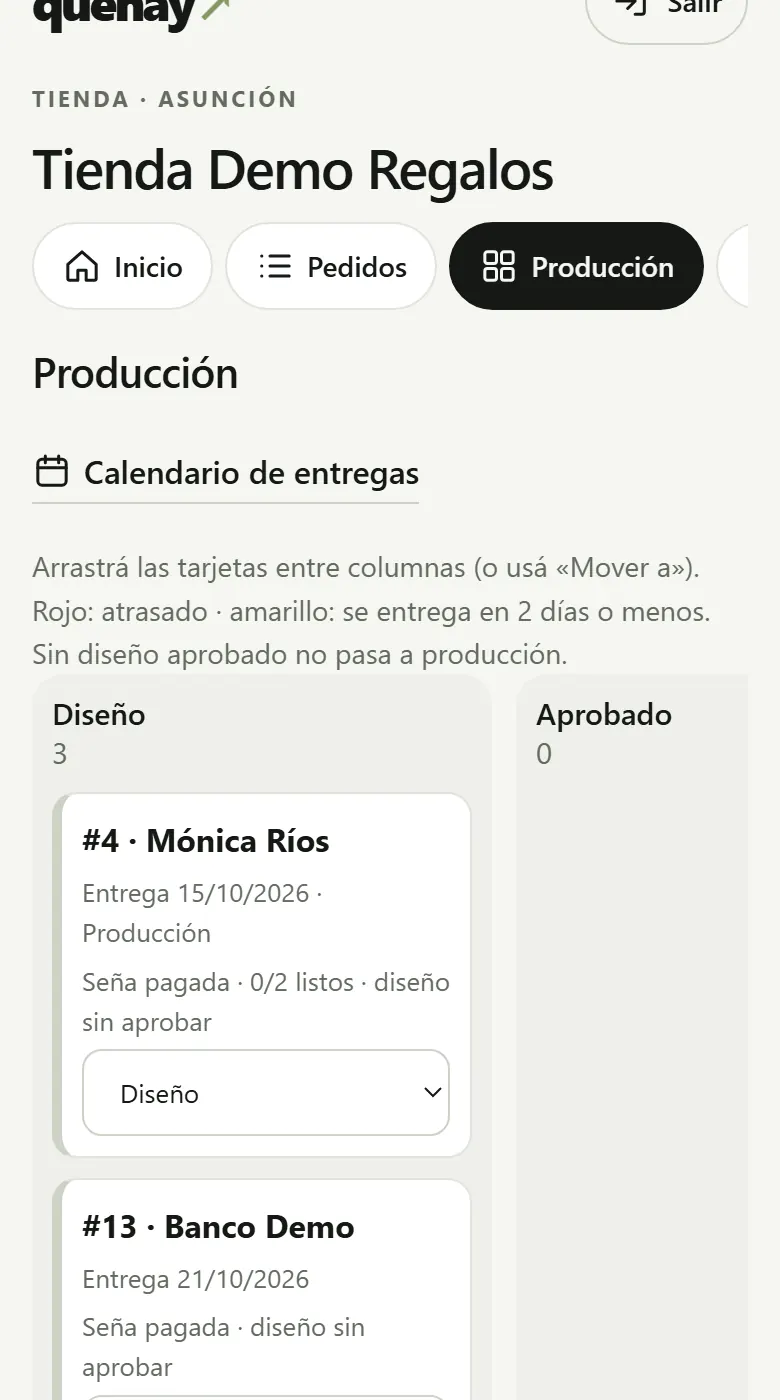
- Under “Production” you see each order in its column, with the delivery date and a color if it’s close or late.
- Drag the card to the next column (or use “Move to”).
- Without an approved design, the order doesn’t move to production.
- On the order check off the checklist tasks and upload the delivery photo.
Send a design for approval
Design rounds with client approval.
Watch video (1 min)
- Open the order and, under “Design”, upload the images or the PDF of the mockup with a note.
- The customer sees it on their link and taps “Approve the design” or “Request changes”.
- If they ask for changes, upload a new round: the history is kept with their comments.
Warehouse and stock
1
Count the storeroom stock
With your phone, by scanning.
Watch video (1 min)
- Under “Inventory” tap “Start a count”.
- Scan or search for each product and enter how many there are.
- When you close the count you see the differences and the stock is corrected.
Customers
4
How to ask for a quote
No account needed: tell us what you want and get the quote.
Watch video (1 min)
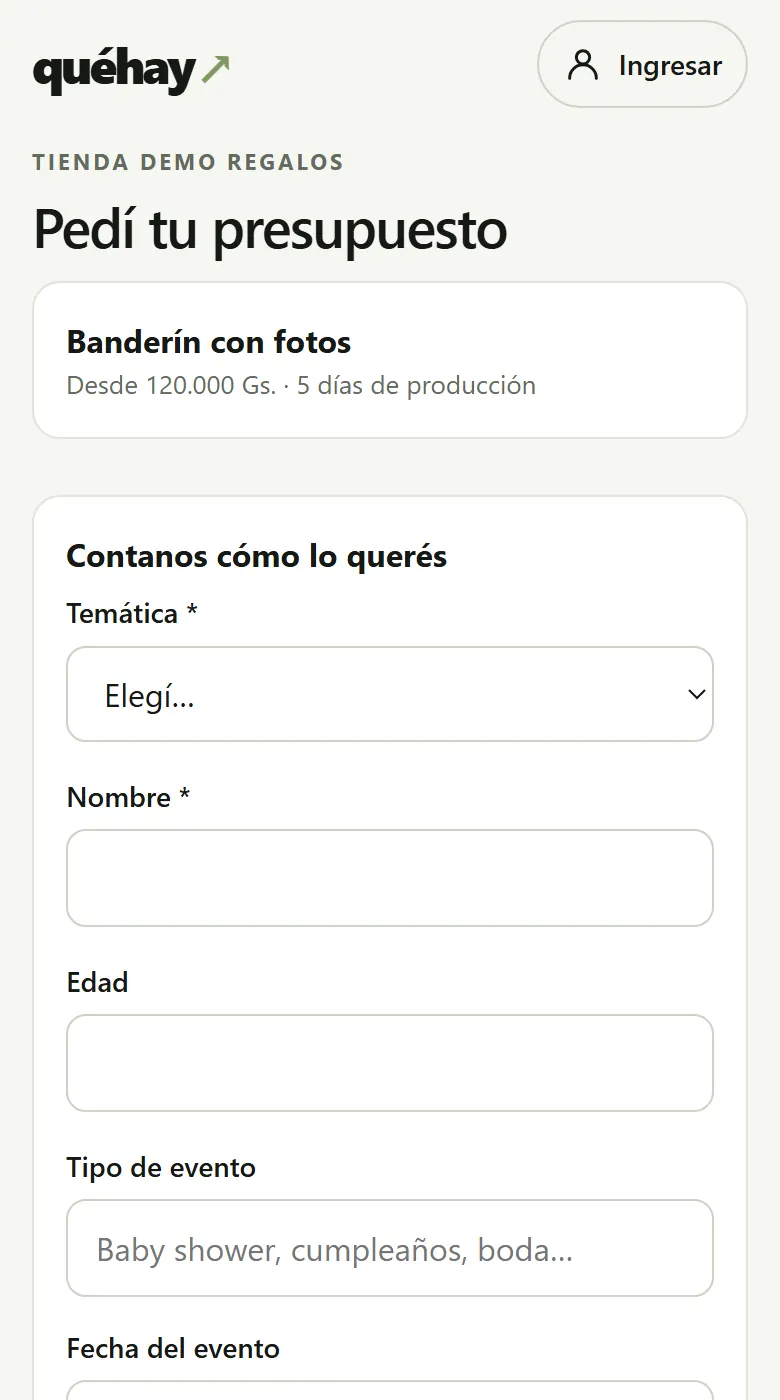
- On the store’s page tap “Request a quote” (or the product you like).
- Tell us what you want: date, theme, names and quantities. Upload reference photos if you have any.
- Leave your WhatsApp. You don’t need to create an account.
- You keep a link to follow your order: there you see the quote when the store sends it.
How to approve your design
You approve or request changes from your link.
Watch video (1 min)
- When the store sends you the design, you see it on your order link.
- If you like it, tap “Approve the design”.
- If you want to change something, write it down and tap “Request changes”. The store sends you a new version.
How to pay the deposit
You transfer and upload the receipt: the store approves it.
Watch video (1 min)
- On your order link tap “Accept quote”.
- Transfer the deposit to the account shown and upload a photo of the receipt.
- The store verifies it in its bank and lets you know by email. You can also pay at the store.
How to buy in the online store
Cart, delivery and payment, or everything via WhatsApp.
Watch video (1 min)
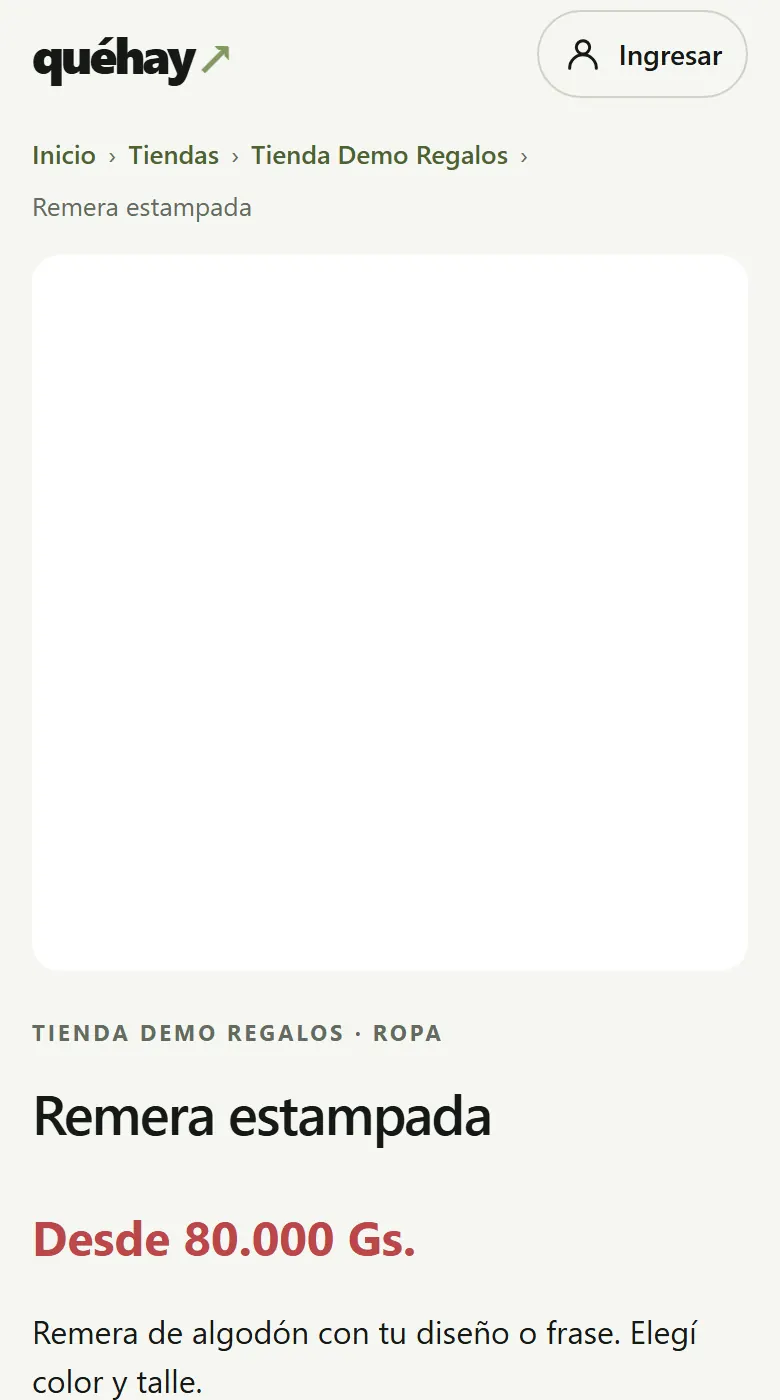
- Choose the product, the variant and the quantity, and tap “Add to cart”.
- In the cart choose pickup or delivery, how you pay, and if you have a coupon enter it.
- Tap “Place order” or “Order via WhatsApp”. You keep the link to follow it and pay.
More
1
The assistant to get your store ready
The steps to get started and win customers, one tap each.
Watch video (1 min)
- Open your dashboard: at the top you see “Implementation assistant” with the next steps and the progress bar.
- Tap “Do it now” on a step: it takes you to the exact screen. When you do it, it checks itself off.
- Steps that can’t be detected automatically (like putting the sign on the door) you mark with “I did it”; the ones you don’t need, with “I don’t need it”.
- If QuéHay helps you get started, what it does is marked “Done by QuéHay”. When it hands things over to you, you see what it did and what’s left for you.
PDF guides and downloadable material
Not using QuéHay yet? See how it works for stores.